YouTube support
YouTube Premium Family paused: What should you do?
Received a YouTube Premium Family pause email? Check the affected account, request a review, and troubleshoot a Contact us link that does not open the form.
Received an email titled “Access to your YouTube Premium family plan has been paused” and started seeing ads? The notice says your Family Premium benefits have been paused because YouTube believes you may not share a household with the family manager.
Think this is a mistake?
Open the notification email, choose “Contact us”, and provide accurate information for YouTube to review. You do not need to leave the group or request another invitation just to contact support.
Family-plan members must live at the same residential address as the family manager. This guide helps you request a review of a possible mistake, not bypass eligibility rules. Submitting the form does not guarantee reinstatement.
In this guide
- What does this email mean?
- Step 1: Open the email and choose “Contact us”
- Step 2: Check the account on the form
- Step 3: Answer household and travel questions truthfully
- Step 4: Read the consent and submit
- Contact us does not open the form?
- What happens after submitting?
What does this email mean?
According to the illustrative email:
- You remain in the family group.
- You can still watch YouTube, but with ads.
- You no longer receive Premium benefits through the Family plan while access is paused.
This concerns Premium membership benefits. It is not a notice that your Google account is locked or your YouTube account has been deleted.
Step 1: Open the email and choose “Contact us”
In the inbox of the account using YouTube Premium Family, find the pause notification. Near the bottom, it says:
If you believe this was an error, please contact us to confirm eligibility and regain access.
If you believe the household decision was mistaken, use the “contact us” link in this passage to open support.
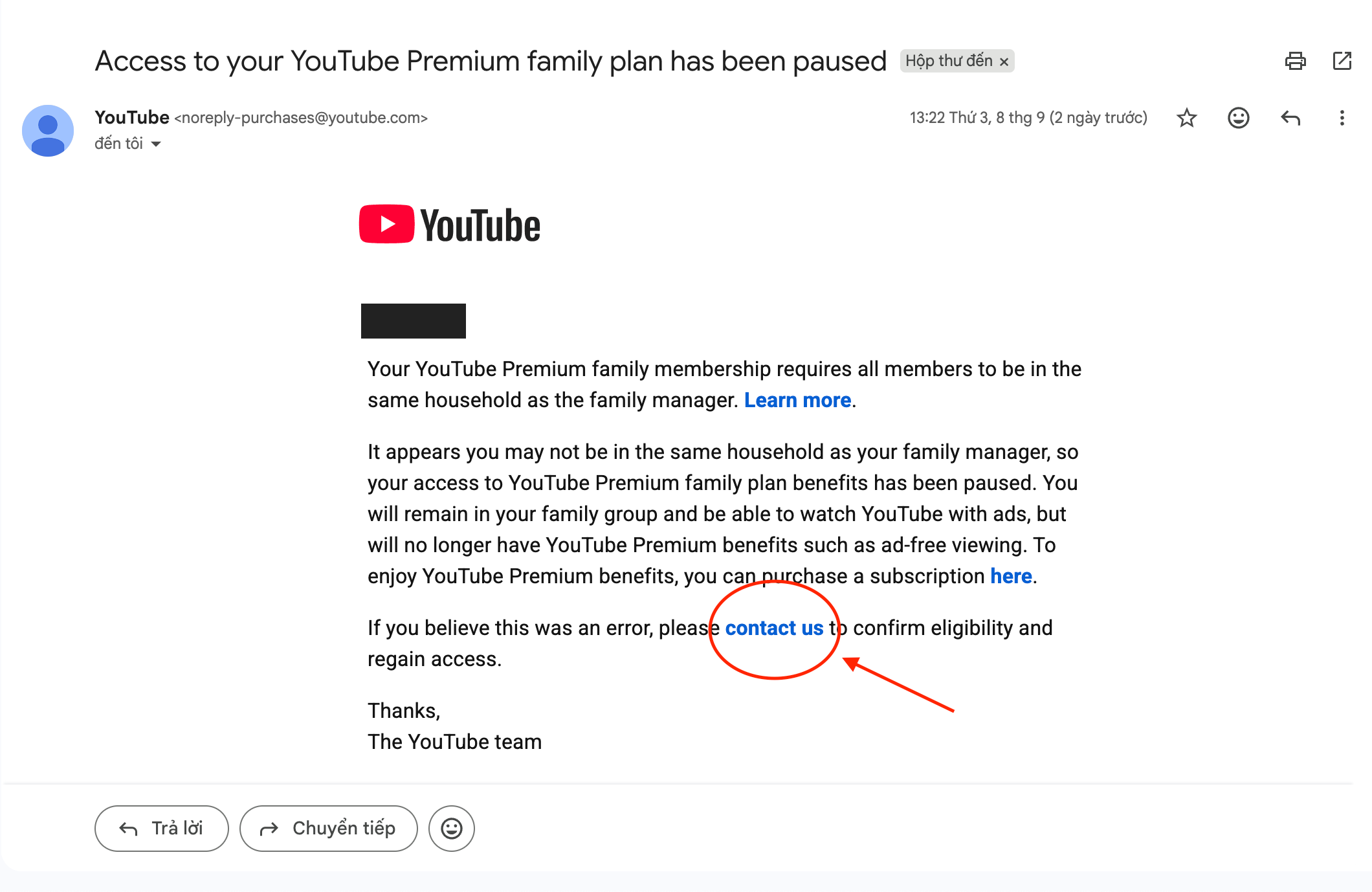
Figure 1. The contact us link is near the bottom of the notification. The recipient’s greeting has been redacted.
Before signing in, check the link destination. A sender name or logo alone does not prove an email is genuine. If unsure, open the YouTube Help Center yourself instead. Never give support your password or verification codes.
Step 2: Check the account on the form
The email link may open a “YouTube Premium family membership support” form like the example below. Its appearance, language, and questions can vary by account or over time.
Before filling it in, check the displayed email address. It must be the Google account that received the notification and has paused Premium benefits, not another account signed in to your browser.
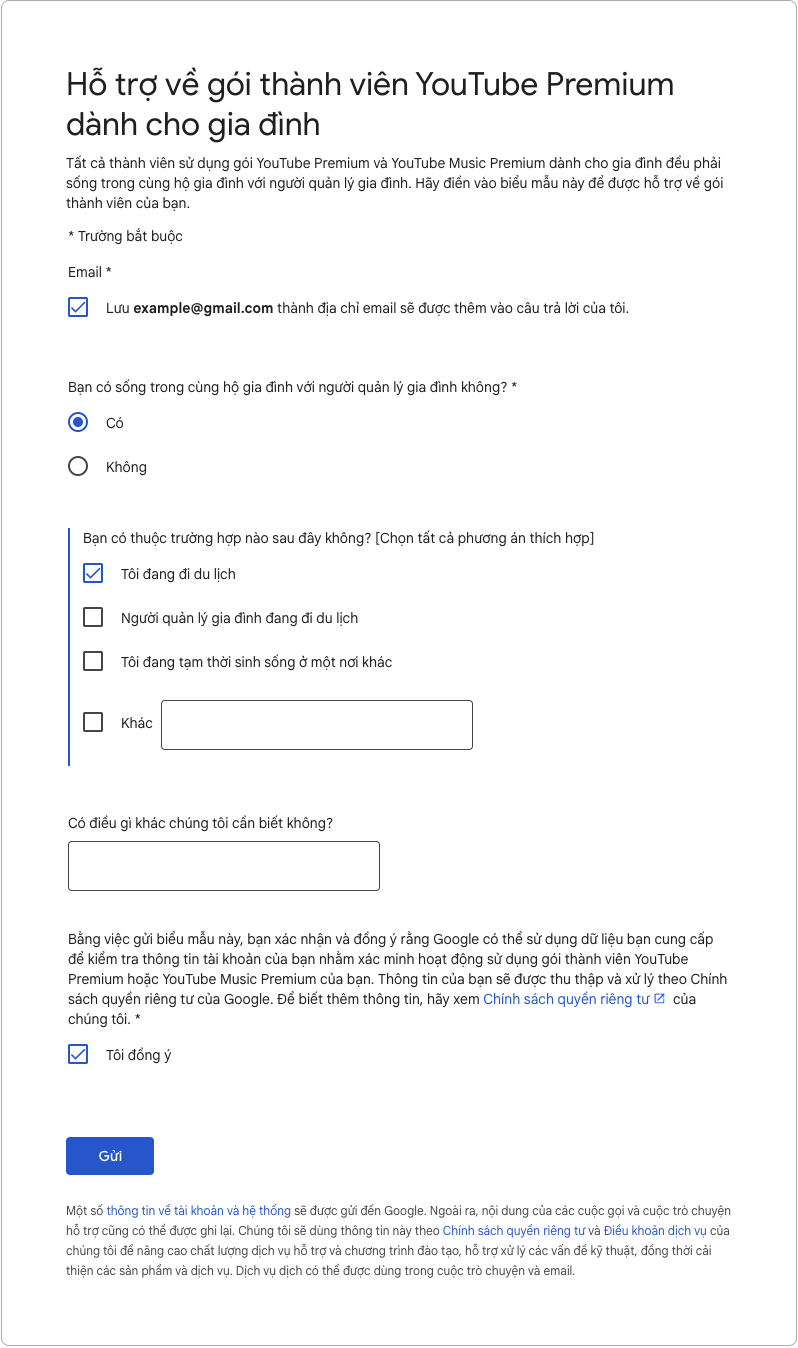
Figure 2. An example form in Vietnamese. “Yes” and “I am travelling” are selected only as examples; answer according to your actual circumstances.
Step 3: Answer household and travel questions truthfully
For “Do you live in the same household as the family manager?”, give the answer that is true:
- Choose Yes.
If the form asks about your current situation, options may include:
- I am travelling.
- The family manager is travelling.
- I am temporarily living somewhere else.
- Other.
Select "I am travelling"
Step 4: Read the consent and submit
- Review the email address and your answers.
- Read how Google may use your data to check Family-plan eligibility.
- Select “I agree” only if you agree to that statement.
- Choose Submit.
Save the confirmation if one appears, then check email for a response or a request for more information.
Contact us does not open the form?
If the link opens under the wrong account or leads to another help page, try again in a private window. Multiple signed-in Google accounts can be one cause, but they are not the only possible cause.
Try a new incognito or private window
- Open a new private window: Chrome → ⋮ → New Incognito Window; Safari on Mac → File → New Private Window.
- Visit Gmail in that window.
- Sign in only to the account that received the pause email. If a different account is already signed in in the private window, switch to the affected account first.
- Reopen the YouTube email and choose “contact us”.
- Check the account on the support page and complete the form if it appears.
Private browsing separates your sign-in session from your regular window. It does not change household eligibility or guarantee the form will appear.
If it still does not open, use YouTube’s paid-product support instructions while signed in to the affected account. Available contact methods can vary. Explain which page the link opens, and redact personal information from any error screenshot you attach.
Contact YouTube paid-product support
What happens after submitting?
- Monitor your inbox and spam folder for replies.
- Provide further information through official support channels if YouTube asks.
- Do not leave and rejoin the family group as a repair. This does not replace household verification, and Google also limits family-group switching.
- Successful submission is not approval. YouTube decides whether to restore benefits after reviewing eligibility.
No fixed processing time was confirmed in the material used for this guide. Follow the specific instructions in the email or support response you receive.
If you do not live in the same household as the manager, that Family plan does not meet the sharing requirements for you. Consider an individual plan or another plan you qualify for instead of making an inaccurate declaration.
Quick recap
Pause seems mistaken? Email → Contact us → check the account → answer truthfully → read consent → Submit → monitor email.
No form? New private window → sign in to the affected Gmail account → reopen the email link → use official YouTube support if the problem continues.
References
An independent guide based on the supplied illustrative email and form, together with official YouTube guidance. This is not a notice from YouTube or Google. Interfaces and support processes may change.